
For the office following the field Mac preview
Your field team.
In view.
Understand the run without calling for every update.
Just Route It goes with the person in the field on their iPhone. Just Routed gives the approved viewer in the office a useful picture on their Mac.
For coordinating employees and project managers visiting sites, making stops and moving between jobs.

Where are they?
The latest shared location, with the time the phone recorded it.
What’s next?
Remaining stops and the next-stop ETA, when the phone shares them.
How long at the stop?
Arrival, time at a stop and departure, where the received information supports them.
One run. Two points of view.
Their iPhone.
Your office Mac.
Prepare a handoff, coordinate the next visit or decide when a call would help. Each person approves what they share from the field.
In the field iPhone
Just Route It
Plan stops, navigate and approve sharing with one viewer. Choose Private, resume or stop from the phone.
In the office Mac
Just Routed
Select an approved person. Follow the received run updates, then review movement and stop history.
Each phone approves one viewer. Several team members can approve the same office viewer.
The approved run at a glance
The details behind
the moving dot.
Play a fictional run. Watch the marker and received path move together, follow the stop clock and see what happens when sharing ends.
Fictional driver, map and numbers. Controls below.
Heading to Workshop. Estimated arrival: 10:49 AM.
- Example time
- 10:42 AM
- Last speed
- 28 mph
- Stops remaining
- 2
Arrival time is an estimate. A refreshed dashboard does not make an older location current.
Make the visit easier to understand
Arrived.
Stopped for.
Left.
See reported events alongside timing detected from received movement. A missing update alone never proves someone left.
- Arrived Reported by the phone
- 9:18 AM
- Stopped for Minimum observed time
- 8 min
- Left Detected from movement
- About 9:26 AM
Ongoing stops stay tied to the latest update: Still here as of the last update.
After the run
A day you can
look back on.
Replay the received day, review stops and time on site, and save a daily PDF or CSV.
Travel without a planned trip can appear when movement history is approved and delivered. Reports describe what the Mac received; gaps stay visible.
More about received history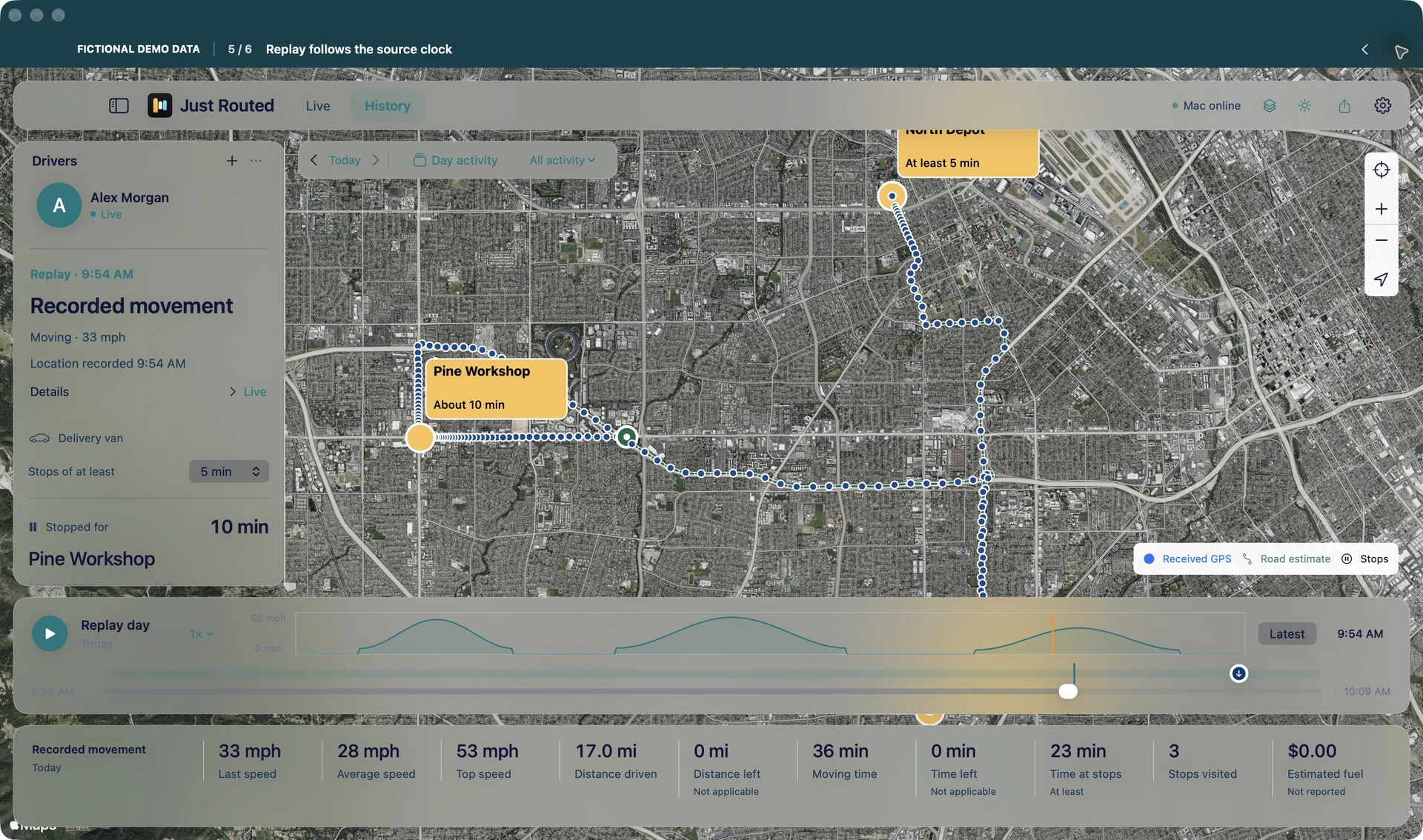
Clear sharing. Clear expectations.
Know what
the status means.
A sharing decision and an older location mean different things. The dashboard keeps the distinction visible.
Stopping sharing ends future updates. Information already received or exported can remain with the viewer.
Private
The driver paused new phone updates. The connection stays. Resuming shares from the current location; the private interval stays excluded.
Updates paused on this Mac
The viewer paused reception on the Mac. Resume without pairing again, as long as the driver still permits sharing.
Sharing ended
Future updates have ended. A driver’s decision to stop sharing is named only when that action is confirmed.
Updates are delayed
The last location is getting older. Its source time remains visible. A delay does not, by itself, mean the driver deliberately stopped sharing.
Missing observations
There isn’t enough received information for that interval. A gap stays visible; it does not establish a route, a departure or someone’s continued presence.

A proposed starting point
Start with
a small pilot.
Choose who views from the office, who shares from the field and how received history and exports will be handled.
- office Mac
- 1
- field iPhones
- 2–3
- working week
- 1
An example pilot scope, to agree together.
- Before
Check the setup.
Arrange access, pair the devices and check background tracking and offline recovery.
- During
Use ordinary work runs.
Note missing or confusing updates and whether the visit history makes sense.
- Review
Decide what helped.
Review check-in calls, useful stop information and the team’s feedback.
Access, iPhone compatibility, scope and pricing need agreement. A complete real-world background/offline recovery check remains pending; verify it on the pilot devices before relying on the view for daily coordination. A public Mac download is not offered here.
Bring your office’s questions.
We can discuss the run information your team needs to see.
Take the explanation with you
The office overview.
The nine-slide presentation, with fictional examples and a proposed pilot.
Download the overview PDF · 9 slides · 6.9 MBOne connected story.
Explore Just Routed for Mac Meet Just Route It Just Route It for iPhone The iPhone app is on the App Store. Public-release features may differ from the Mac preview described here.